

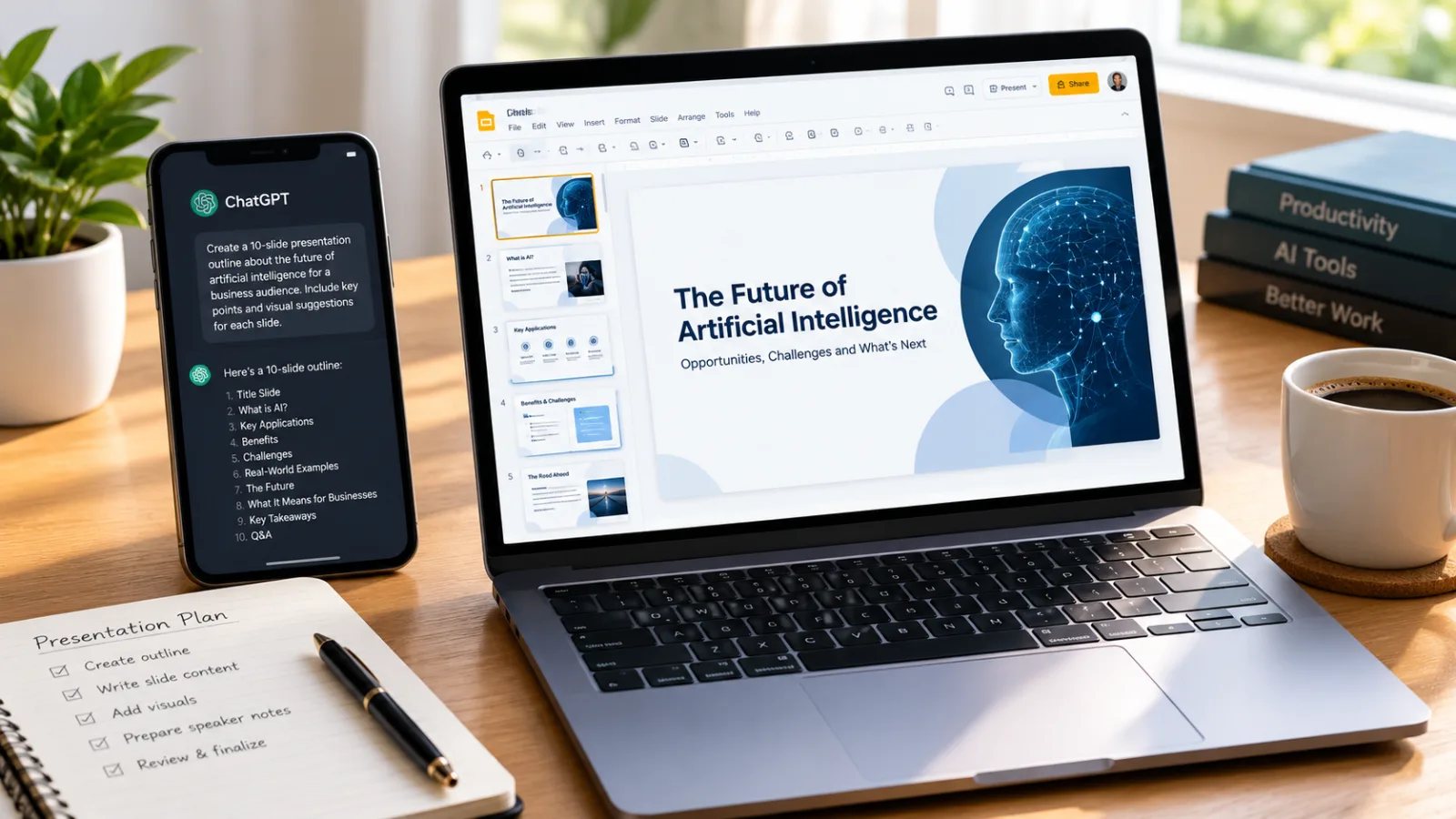
How to Use ChatGPT to Create Professional Presentations for Free
Creating a professional presentation can take hours. You need to organize your ideas, write slide content, find the right structure, and make everything look clear and attractive.
Fortunately, AI tools can make this process much easier.
ChatGPT can help you brainstorm ideas, create slide outlines, write concise content, generate speaker notes, and suggest visual layouts. You can then use a presentation editor to turn that content into finished slides.
In this tutorial, you will learn how to use ChatGPT to plan a presentation step by step, with copy-and-paste prompts you can try yourself.
What You Need Before Getting Started
You do not need advanced design skills or programming knowledge.
To follow this tutorial, you need:
ChatGPT: To generate ideas, slide content, and presentation structure.
A presentation tool: Such as Microsoft PowerPoint, Google Slides, or Canva.
A topic: For example, a school project, business proposal, marketing plan, or educational presentation.
ChatGPT's free access and features can change, and some presentation tools have paid features. You can still use the workflow below without purchasing a premium AI subscription.
Step 1: Decide the Purpose of Your Presentation
Before asking AI to create slides, decide what you want your audience to learn or do.
For example, your presentation might explain a complex topic, introduce a product, summarize a report, or persuade a client to approve a proposal.
Give ChatGPT four important details:
Your presentation topic.
Your target audience.
The approximate number of slides.
The main goal of the presentation.
The more specific your instructions, the more relevant the results are likely to be.
Step 2: Generate a Presentation Outline With ChatGPT
Start by asking ChatGPT to organize your topic into a logical sequence of slides.
You can use this prompt:
Copy-and-paste prompt:
Act as an expert presentation planner. Create a clear outline for a 10-slide presentation about [YOUR TOPIC].
Target audience: [YOUR AUDIENCE].
Goal: [WHAT THE PRESENTATION SHOULD ACHIEVE].
For each slide, provide a title, three to five key points, and a suggestion for a relevant visual.
Keep the structure logical, avoid repetition, and use simple language. Include an introduction, main content, practical examples, and a conclusion.
Replace the text in brackets with your own information.
For example, if you are creating a presentation about artificial intelligence for beginners, ChatGPT can suggest slides covering the definition of AI, everyday applications, benefits, limitations, examples, and future developments.
Review the outline before moving forward. Remove irrelevant slides and ask ChatGPT to improve any sections that feel repetitive or unclear.
Step 3: Write Concise Content for Each Slide
A common presentation mistake is adding too much text to every slide.
Your slides should communicate the main ideas quickly. Detailed explanations can go into speaker notes instead.
Use this prompt to refine the content:
Turn the following presentation outline into slide-ready content.
For each slide, provide:
One short, engaging title.
Three to five concise bullet points.
One practical example where appropriate.
One visual suggestion.
Speaker notes of approximately 50–80 words.
Use clear, professional language. Avoid unnecessary jargon, repetitive information, and long paragraphs. Do not invent statistics, quotations, or sources.
Paste your approved outline after the prompt.
ChatGPT can now create a more complete draft that you can review and transfer into your preferred presentation editor.
Tip: Treat AI-generated facts and statistics as claims to verify, especially if your presentation is for work, school, research, or clients.
Step 4: Improve the Presentation Design
Good presentation design makes information easier to understand.
Ask ChatGPT to recommend a consistent visual style before you begin building the slides.
Try this prompt:
Recommend a professional visual design for my presentation about [YOUR TOPIC].
Suggest a color palette, font pairing, title style, background style, chart style, and image direction.
Keep the design clean and readable. Use consistent spacing, strong contrast, and minimal text per slide. Explain how the design should vary between the title slide, content slides, comparison slides, and conclusion.
You can then apply the suggestions in PowerPoint, Google Slides, or Canva.
For a business presentation, you might choose a restrained color palette and simple charts. For an educational presentation, diagrams and illustrative images may be more useful.
Avoid placing too many colors, decorative elements, or unrelated images on the same slide.
Step 5: Choose a Tool to Build Your Slides
ChatGPT is useful for creating content, but the way you turn that content into a presentation depends on the tools available to you.
Here are three options to consider.
Option 1: Google Slides
Google Slides is useful for creating and editing presentations in a web browser.
Best for: Students, teams, and people who want a straightforward slide editor.
Workflow:
Open Google Slides.
Create a blank presentation or select a template.
Copy your titles and bullet points from ChatGPT.
Add relevant images, charts, and diagrams.
Apply a consistent design to the slides.
Option 2: Microsoft PowerPoint
PowerPoint is a good choice for professional presentations with detailed formatting, charts, animations, and speaker notes.
Best for: Business presentations, classroom lectures, and formal projects.
Workflow:
Open a new presentation.
Select a suitable theme.
Add your AI-generated content slide by slide.
Insert visuals and charts where they add value.
Review speaker notes and slide transitions.
Option 3: Canva
Canva offers presentation templates and visual design features that can help you create polished slides.
Best for: Marketing presentations, visual storytelling, and social media presentations.
Workflow:
Open Canva and choose a presentation format.
Select a template that fits your topic.
Add the content generated by ChatGPT.
Customize the typography, colors, and visuals.
Review the presentation for consistency.
Features and pricing vary by product and account. Check the relevant tool's current plan details before relying on a specific AI presentation feature.
Step 6: Create Better Speaker Notes
Speaker notes can help you explain the content without filling your slides with paragraphs.
Ask ChatGPT to expand the key points into a natural speaking script.
Use this prompt:
Write speaker notes for my presentation, one slide at a time.
The audience is [YOUR AUDIENCE], and the total presentation should last approximately [NUMBER] minutes.
Explain each slide in a natural, conversational style. Add transitions between slides and include examples where useful.
Keep the notes informative without simply reading the bullet points aloud. Do not add unsupported facts.
Review the script and adjust it to sound like your own speaking style. If you are presenting live, practice aloud and shorten any sections that feel unnatural.
Step 7: Check and Improve the Final Presentation
Before presenting, review the slides carefully.
You can ask ChatGPT to act as a presentation reviewer.
Review prompt:
Review the following presentation content as a professional presentation editor.
Identify confusing slides, repeated points, excessive text, weak transitions, unsupported claims, and missing information.
Recommend specific improvements for each slide. Do not rewrite the entire presentation unless necessary.
Presentation content:
[PASTE YOUR SLIDE CONTENT HERE]
You should also check:
Spelling, grammar, and formatting.
Whether charts accurately represent their data.
Whether sources are cited for factual claims.
Whether images are appropriate and licensed for your intended use.
Whether the text is readable on a projector or mobile screen.
Whether the presentation has a clear beginning, middle, and ending.
AI can help identify issues, but your own final review is essential.
Bonus: One Prompt to Plan an Entire Presentation
If you want to begin with a single detailed instruction, try this reusable prompt:
You are an expert presentation strategist, content writer, and visual communication designer.
Help me plan a professional presentation about [TOPIC] for [AUDIENCE].
The presentation should contain [NUMBER] slides and achieve this goal: [GOAL].
For each slide, provide:
A concise title.
Three to five key points.
Suggested visuals or diagrams.
Speaker notes.
A transition to the next slide, where appropriate.
Begin with a compelling introduction, develop the main ideas in a logical sequence, use practical examples, and finish with a clear conclusion.
Keep slide text concise and the design consistent. Flag any claims that require fact-checking instead of inventing sources or statistics.
First, show me the complete outline for approval. Do not draft all slides until I approve the outline.
This final instruction is particularly useful because it lets you approve the structure before spending time refining every slide.
Advantages and Limitations of Using ChatGPT for Presentations
Advantages | Limitations |
|---|---|
Helps brainstorm ideas quickly | May generate inaccurate facts |
Organizes information into slides | May produce generic content |
Creates speaker notes and summaries | Does not guarantee polished slide layouts |
Suggests design directions | Some features require separate tools |
Helps refine wording and flow | Requires human review and editing |
The best results usually come from combining AI-generated content with your own expertise, reliable sources, and a suitable presentation editor.
Frequently Asked Questions
Can ChatGPT create a PowerPoint presentation?
ChatGPT can generate presentation outlines, slide content, speaker notes, and design suggestions. Depending on the tools and features available in your account, it may also support file creation or other workflows. Otherwise, you can transfer its output into PowerPoint or another presentation editor.
Can I use ChatGPT for presentations for free?
You can use available free ChatGPT access to generate and refine presentation content. Usage limits and feature availability may vary. Some presentation editors and advanced AI features also require paid plans.
Which AI tool is best for presentations?
The best choice depends on your needs. ChatGPT is useful for planning and writing content, PowerPoint offers detailed presentation editing, Google Slides is convenient for browser-based collaboration, and Canva provides design templates. Compare current features before choosing.
How many slides should a presentation have?
There is no universal rule. A short presentation might need five to seven slides, while a detailed workshop or business presentation may need more. Focus on the amount of information your audience needs rather than a fixed slide count.
Can AI-generated presentation content contain mistakes?
Yes. AI may produce inaccurate facts, unsupported statistics, or misleading explanations. Verify important claims with reliable sources and check all calculations, charts, and references before presenting.
Final Thoughts
You do not need to start every presentation from a blank page. ChatGPT can help you organize ideas, write concise slide content, develop speaker notes, and improve the overall structure.
The key is to use AI as a planning and writing assistant rather than relying on it to make every decision. Combine its suggestions with a suitable presentation editor, verify important information, and make the final slides your own.
Ready to explore more practical AI tutorials? Visit MyAIForge for guides that help you discover and use AI tools more effectively.
Disclaimer: This article is for educational purposes. AI tool features, availability, and pricing may change. Always review generated content and check the official documentation for current product capabilities.