
Canva Review: Is It Worth Using for Content Creators?
Creating attractive content consistently can be challenging. You need eye-catching thumbnails, social media posts, blog graphics, presentations, and sometimes short videos—all without spending hours learning complicated design software.
That is where Canva comes in.
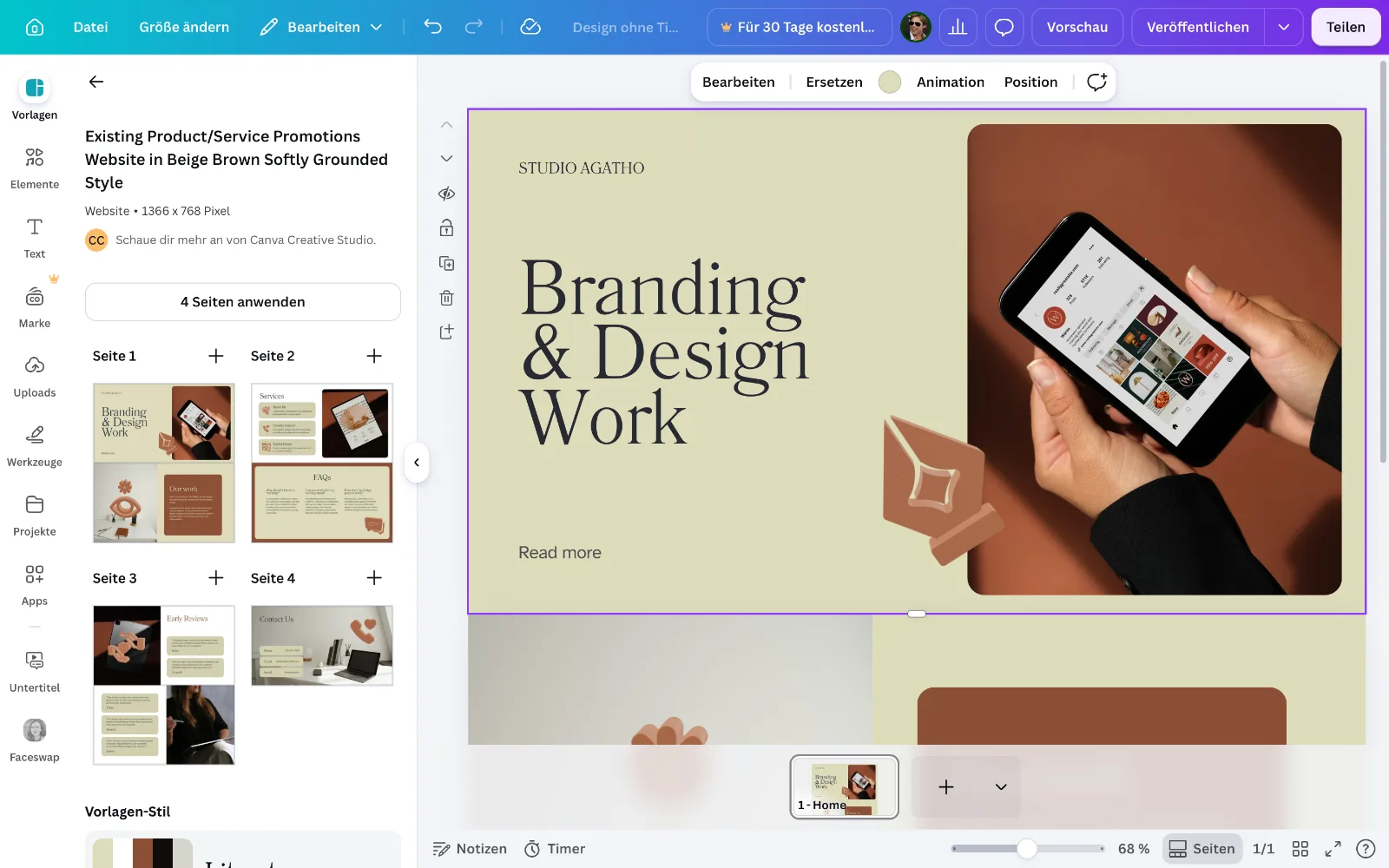
Canva is an online design platform that helps users create visual content using templates, drag-and-drop editing tools, stock assets, and AI-powered features. It is designed to make graphic design more accessible to beginners while still offering useful tools for experienced creators.
But is Canva actually worth using for content creators? Is the free version enough, or do you need a paid subscription? And how does it compare with more advanced creative software?
In this Canva review, we examine its main features, pricing, advantages, disadvantages, and best use cases to help you decide whether it fits your workflow.
Quick verdict: Canva is a strong option for creators who need to produce attractive graphics quickly without mastering professional design software. Canva Free is a sensible starting point, while a paid plan may be worthwhile if you regularly need premium assets, background removal, advanced resizing, or other paid features.
What Is Canva?
Canva is a web-based graphic design and content creation platform. It allows users to create designs from templates or start with a blank canvas and customize text, colors, images, layouts, and other elements.
You can use Canva for projects such as:
YouTube thumbnails and channel graphics
Instagram posts, Stories, and other social media content
Blog featured images and website graphics
Presentations and pitch decks
Posters, flyers, and promotional materials
Resumes, invitations, and documents
Short-form videos and simple visual animations
Business marketing materials and brand assets
Canva also offers AI-powered design and editing tools. The exact tools and usage limits available to you depend on your plan, account, and feature eligibility.
Official website: https://www.canva.com/
Canva Review: Key Features
1. Easy Drag-and-Drop Editor
One of Canva's biggest strengths is its straightforward editor.
You can add text, shapes, photos, illustrations, icons, and other elements to a design, then move and resize them visually. You do not need to understand advanced image-editing techniques to create a clean-looking graphic.
For beginners, this reduces the learning curve considerably.
For example, a blogger can select a blog banner template, replace the sample text, upload an image, adjust the colors, and export the finished graphic.
Best for: Beginners, bloggers, social media managers, and creators who value speed and simplicity.
2. Thousands of Templates
Canva provides templates for a wide range of design formats. These can help you get started without designing every element from scratch.
Content creators can use templates for:
YouTube thumbnails
Instagram carousels
Pinterest pins
Blog banners
Presentation slides
Video covers
Advertisements
Newsletters and promotional graphics
Templates are particularly useful when you publish content frequently.
However, simply changing the text in a popular template may not be enough to make your design stand out. Customize the layout, typography, colors, and imagery to develop a recognizable visual identity.
Some templates and design elements require a paid plan.
3. AI-Powered Design Tools
Canva has expanded beyond traditional templates by introducing AI-assisted creation and editing features.
Depending on your plan and available access, these tools may help you generate or edit visual content, modify images, write or refine text, and develop designs from prompts.
Potential uses for content creators include:
Generating initial design concepts
Creating background variations
Editing or removing unwanted parts of images
Developing visual ideas for social media campaigns
Drafting text for graphics and presentations
Adapting designs for different content formats
Canva's AI capabilities and usage allowances change, so check the official feature and pricing pages before upgrading.
Official AI information: https://www.canva.com/ai/
Our assessment: AI features can speed up the creative process, but the output still needs human review. Generated text can contain errors, and AI-generated visuals may need adjustments before publication.
4. YouTube Thumbnail Design
Canva is a useful option for YouTubers who want to create thumbnails without learning a professional image editor.
You can combine photographs, bold text, shapes, backgrounds, and other visual elements to make a thumbnail that communicates the video's subject quickly.
A practical thumbnail workflow might look like this:
Choose a suitable thumbnail layout.
Add a clear, relevant image.
Write a short headline that complements the video title.
Use contrasting colors and readable typography.
Remove unnecessary elements.
Export the design and review it at a small size.
Remember that a good-looking thumbnail does not guarantee more views. The design must accurately represent the video and make its subject clear.
5. Social Media Content Creation
Canva is especially useful for creators who publish on several social platforms.
Instead of creating every graphic from scratch, you can establish a consistent design style and reuse it across posts, carousels, promotional images, and other content.
Depending on your plan and workflow, resizing and content-planning features can also help you adapt or schedule content.
For example, a creator might produce a series of educational Instagram posts using the same fonts, colors, and layout. This creates a more consistent visual identity and can reduce repetitive work.
6. Photo and Video Editing
Canva includes visual editing and video creation tools that are useful for straightforward projects.
You can combine images, text, clips, transitions, graphics, and audio to create promotional videos, social media clips, and simple presentations.
It may be sufficient for basic content production, but creators working on complex timelines, detailed color grading, advanced compositing, or sophisticated audio workflows may prefer dedicated video-editing software.
If video editing is your main priority, compare Canva with tools built specifically for that purpose before committing to a paid subscription.
7. Brand Kits and Consistent Design
Maintaining consistent branding can become difficult when you publish content across several platforms.
Paid Canva plans provide additional brand-management capabilities, while the free plan includes more limited brand functionality.
Brand-related features can help eligible users organize colors, fonts, and logos for repeated use. The availability of specific features depends on the plan.
This is particularly useful for:
Bloggers managing several content categories
YouTubers developing a recognizable channel identity
Freelancers creating designs for clients
Small businesses producing regular marketing materials
Canva Pricing: Is the Free Version Enough?
Canva offers a free plan alongside paid options. Pricing, features, promotions, and AI allowances can vary by country and may change over time.
The following prices are listed on Canva's India pricing page when this article was prepared.
Plan | Listed India price | Best suited for |
|---|---|---|
Canva Free | ₹0 per year | Beginners and occasional creators |
Canva Pro Lite | ₹1,590 per year | Individuals needing selected premium tools |
Canva Pro | ₹4,000 per year | Frequent solo creators |
Canva Business | ₹6,800 per person per year | Businesses and growing teams |
These are listed annual prices, not a guarantee of the amount every user will pay. Check the official page for current billing options, offers, taxes, eligibility, and plan details.
Official pricing page: https://www.canva.com/en_in/pricing/
Canva Free
Canva Free is a good place to start if you are learning design or only need occasional graphics.
It provides an editor, templates, design elements, and standard export options. However, some premium assets and advanced tools are restricted, and AI usage is limited.
Our recommendation: Start with the free plan before paying for features you may not need.
Canva Pro Lite
Pro Lite is an additional paid option shown on Canva's India pricing page. It offers selected premium resources and tools, but it is not identical to the full Pro plan.
Check the current feature comparison carefully to make sure it includes the specific capabilities you want.
Canva Pro
Canva Pro is aimed at individual creators who need more premium content, design tools, and AI access.
Depending on the current plan, benefits may include expanded asset access, background removal, resizing tools, brand kits, content scheduling, and higher AI allowances.
It may be worth considering if you create graphics frequently and the included features save enough time to justify the subscription.
Canva Business
Canva Business is designed for businesses and growing teams that need more extensive brand management, collaboration, and AI capabilities.
It may be unnecessary for someone who only creates occasional YouTube thumbnails or blog images.
Important: Canva's former Teams plan is no longer available for new sign-ups or upgrades according to its current help documentation. Check the latest plan comparison before purchasing.
Pros and Cons of Canva
Pros
Beginner-friendly: The visual editor is easy to approach without professional design experience.
Wide range of templates: You can start from a template rather than building every design from scratch.
Multiple content formats: One platform supports social graphics, presentations, documents, and simple videos.
Useful for regular publishing: Reusable layouts can make recurring design tasks faster.
AI-assisted creation: Eligible tools can help with ideation and certain editing tasks.
Free starting option: You can explore the platform without immediately purchasing a subscription.
Convenient workflow: You can create and manage many types of visual content in one place.
Cons
Premium content restrictions: Some assets and tools require a paid plan.
AI usage limits: Access and allowances vary by plan and feature.
Template-heavy designs can look generic: Popular layouts need customization to stand out.
Less control for advanced work: Specialized creative software may be better for complex editing.
Subscription value depends on usage: A paid plan may not be worthwhile if you only create a few graphics each month.
Internet and account considerations: Online workflows may not suit every situation, and some features depend on connectivity or account eligibility.
Canva vs. Professional Design Software
Canva and professional design applications serve overlapping but different needs.
Requirement | Canva | Specialized design software |
|---|---|---|
Quick social media graphics | Excellent fit | Can work, but may take longer |
Template-based designs | Major strength | Varies by application |
Beginner learning curve | Generally low | Often higher |
Complex photo manipulation | Suitable for basic tasks | Usually offers deeper control |
Detailed vector illustration | Limited compared with specialist tools | Better suited to advanced work |
Simple promotional videos | Useful | Depends on the application |
Highly customized professional projects | May have limitations | Often more flexible |
Canva is not necessarily a replacement for every creative application. For many creators, it works best as a convenient everyday design tool, even when they use specialized software for more demanding projects.
Is Canva Good for Different Types of Content Creators?
YouTubers
Canva is a good choice for thumbnail layouts, channel graphics, community post images, and promotional materials.
If your primary need is attractive thumbnails and simple channel branding, the free plan may be enough to get started.
Bloggers and Website Owners
Bloggers can use Canva to create featured images, article illustrations, infographics, Pinterest graphics, and social media promotions.
For a website owner, reusable templates can make it easier to maintain consistent imagery across articles.
Remember to optimize exported images for your website. Large image files can slow down page loading, so resize and compress them appropriately.
Instagram and Social Media Creators
Canva works well for social posts, carousels, Stories, announcements, and branded templates.
It is particularly useful when your content relies on text, layouts, and visual consistency rather than complex photography.
Freelancers and Small Businesses
Freelancers can use Canva to create presentations, promotional graphics, proposals, and other marketing assets.
Businesses with multiple contributors may benefit from additional collaboration and brand-management features in an appropriate paid plan.
Video Creators
Canva can support simple promotional videos and short-form visual content. However, if you regularly edit complex footage or need precise control over a video timeline, compare it with a dedicated editor before deciding.
Is Canva Safe for Commercial Use?
Canva allows many designs to be used for commercial purposes, but you must follow its content licensing rules.
In general, using licensed Canva content as part of an original design is different from redistributing an unaltered stock image or graphic on its own.
Before using an asset in a client project, advertisement, product, or merchandise, check the applicable licence and restrictions. Do not assume that every asset can be resold or redistributed independently.
Official guidance: https://canvacreatorsupport.zendesk.com/hc/en-us/articles/4415859257487-Using-Canva-for-Commercial-Purposes
Tips for Getting Better Results with Canva
If you decide to use Canva, a few simple practices can improve your results.
1. Develop a consistent style. Choose a small set of colors and fonts that match your brand.
2. Customize templates. Use templates as starting points rather than publishing every design unchanged.
3. Prioritize readability. Keep headlines clear and avoid overcrowding your graphics with text.
4. Use high-quality images. Select relevant visuals and ensure you have the rights to use them.
5. Create reusable layouts. Save time by developing templates for recurring posts, thumbnails, and blog graphics.
6. Check exports before publishing. Review spelling, image quality, alignment, and dimensions.
7. Upgrade only when necessary. Identify the exact paid feature you need before choosing a subscription.
8. Treat AI output as a first draft. Check factual claims, visual errors, and brand consistency before publication.
Best Canva Alternatives
Canva is not the only tool worth considering. Your best alternative depends on the kind of work you do.
Adobe Express
Consider Adobe Express if you want a template-driven design workflow and want to explore tools within Adobe's creative ecosystem.
Website: https://www.adobe.com/express/
Adobe Photoshop
Photoshop is worth considering for detailed image editing, advanced photo manipulation, and projects requiring precise control.
Website: https://www.adobe.com/products/photoshop.html
Figma
Figma is particularly relevant to interface design, collaborative product design, and prototyping. It is not a direct replacement for every Canva workflow.
Website: https://www.figma.com/
CapCut
CapCut is worth considering when video editing is the primary task. It focuses more directly on video creation and editing workflows.
Website: https://www.capcut.com/
The right choice depends on whether you prioritize quick templates, detailed image editing, interface design, or video production.
Frequently Asked Questions
Is Canva free to use?
Yes. Canva offers a free plan with design tools, templates, and export options. Some premium assets, advanced features, and AI capabilities require a paid plan or have usage limits.
Is Canva worth it for YouTubers?
Canva can be worthwhile for YouTubers who regularly create thumbnails, channel graphics, and promotional images. Start with the free plan and upgrade only if you need specific premium features.
Is Canva Pro worth paying for?
It can be worthwhile if you regularly use its premium assets and tools or save enough time to justify the cost. If your design needs are occasional and basic, Canva Free may be sufficient.
Can I use Canva for blog images?
Yes. You can create featured images, banners, illustrations, and promotional graphics for blog posts. Export images at suitable dimensions and optimize file sizes before uploading them to your website.
Does Canva have AI tools?
Yes. Canva offers AI-assisted design and editing capabilities. Specific features, usage allowances, and availability depend on your plan and current eligibility.
Can I use Canva designs commercially?
Many Canva designs can be used commercially, subject to the applicable content licences and restrictions. Review the official licensing guidance before using assets in products, client work, or merchandise.
Is Canva better than Photoshop?
Neither is universally better. Canva is generally more convenient for template-based graphics and quick content production. Photoshop is more appropriate for advanced image editing and detailed manipulation.
Can beginners use Canva?
Yes. Its template-based workflow and drag-and-drop editor make it approachable for people who have little or no graphic design experience.
Final Verdict: Should Content Creators Use Canva?
Yes, Canva is worth considering for content creators who need attractive designs without a complicated learning process.
Its strongest advantage is convenience. You can create thumbnails, blog graphics, social media posts, presentations, and other visual assets in one platform.
However, it is not the best tool for every creative task. Advanced designers may prefer specialist applications, while creators who only need occasional graphics may find the free plan sufficient.
Here is our practical recommendation:
Beginners: Start with Canva Free.
YouTubers and bloggers: Try the free workflow for thumbnails and article graphics first.
Frequent creators: Consider a paid plan if its premium tools solve a recurring problem.
Teams and businesses: Compare collaboration and brand-management features before selecting a plan.
Advanced designers: Use Canva where it saves time and retain specialized software for complex projects.
Ultimately, the best design tool is the one that fits your workflow, budget, and creative requirements.
Before subscribing, review Canva's current plan comparison and make sure the features you need are included.
Explore Canva: https://www.canva.com/
Editorial note: This article provides a feature-based assessment, not a claim of independent hands-on testing of every Canva feature. Pricing, AI allowances, and plan availability can change. Verify current details on Canva's official website before making a purchase.
Sources
Canva official pricing: https://www.canva.com/en_in/pricing/
Canva AI: https://www.canva.com/ai/
Canva plan guidance: https://www.canva.com/en_in/help/upgrade-to-canva-pro-or-business/
Canva commercial-use guidance: https://canvacreatorsupport.zendesk.com/hc/en-us/articles/4415859257487-Using-Canva-for-Commercial-Purposes