

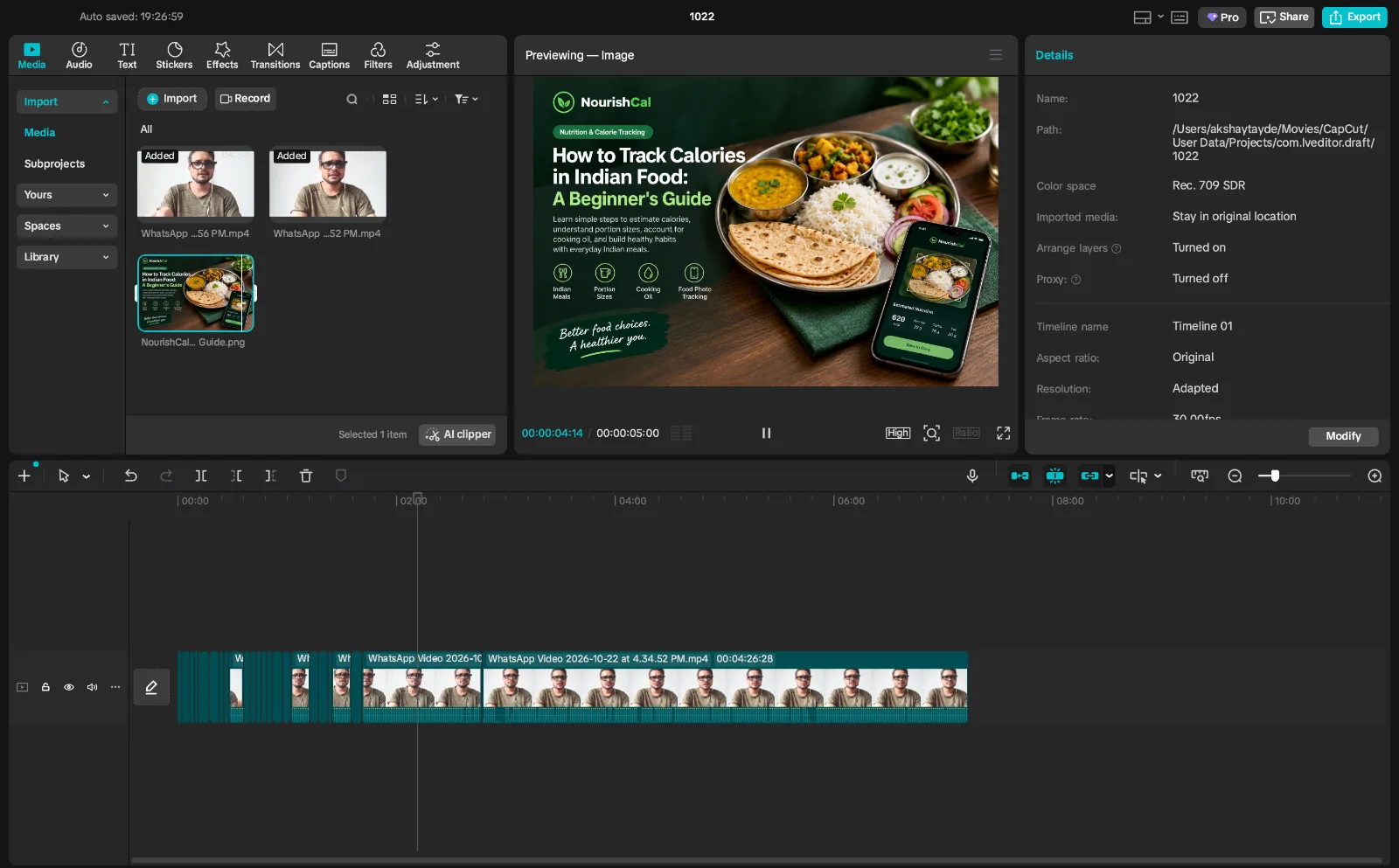
CapCut Review (2026): Features, Pricing, Pros & Cons
Video content is everywhere—from YouTube Shorts and Instagram Reels to TikTok videos, product demonstrations, tutorials, and online courses. For creators who want to produce engaging videos without learning a complicated editing workflow, choosing the right video editor can make a significant difference.
CapCut is a popular video editor designed for creators who want accessible editing tools, effects, templates, captions, and AI-powered features in one place. It offers mobile, desktop, and browser-based editing options, although available features can vary by platform and region.
But is CapCut still worth considering in 2026? Is its free version enough, and when does paying for CapCut Pro make sense?
In this review, we'll examine its main features, pricing considerations, advantages, limitations, and alternatives to help you decide whether it fits your workflow.
What Is CapCut?
CapCut is a video-editing application developed by ByteDance. It is designed for people who want to create and edit videos for social media, personal projects, marketing, and other content formats.
Rather than focusing exclusively on professional post-production, CapCut combines a relatively approachable editing workflow with creative effects, text overlays, transitions, audio tools, and AI-assisted features.
You can explore CapCut through its official website: CapCut Video Editor.
CapCut offers several ways to edit:
Mobile app: Useful for editing videos directly on a phone.
Desktop app: Suitable for creators who prefer a larger screen and a more detailed editing workspace.
Web editor: Lets you work in a browser without installing the desktop application.
The available features and subscription benefits may differ across these versions.
CapCut Review: Quick Overview
Feature | Overview |
|---|---|
Main purpose | Video editing and content creation |
Best suited for | Social media creators, beginners, and marketers |
Platforms | Mobile, desktop, and web |
Free plan | Available |
Paid option | CapCut Pro, with region-dependent pricing |
AI features | Available, with access depending on the tool and plan |
Typical use cases | Shorts, Reels, tutorials, promotional videos, and personal projects |
Main consideration | Some tools and assets require a paid plan |
Our initial verdict: CapCut is worth considering if you want an accessible editor with creative effects and features for short-form content. However, your decision should depend on which features you actually need, your device, and the cost of the plan available in your region.
Key CapCut Features
1. Timeline-Based Video Editing
CapCut provides editing tools that let you arrange video clips, trim unwanted sections, split footage, adjust timing, and combine multiple clips into a finished video.
You can add text, transitions, effects, and audio to create a more polished result.
These tools are useful for tasks such as removing pauses from a talking-head video, combining several clips into a tutorial, or creating a short promotional video.
For beginners, having many common editing functions in one application can make it easier to move from raw footage to a finished project.
2. Templates, Effects, and Transitions
CapCut includes creative templates, filters, transitions, and visual effects. These can help creators produce videos with a consistent style without manually building every visual element.
Templates can be particularly useful for social media content where quick turnaround matters.
However, templates should be a starting point rather than a substitute for original content. If you use the same template, music, and visual style as everyone else, your videos may look repetitive.
For business content, check the usage rights for individual music tracks, templates, and other assets before publishing them commercially.
3. Automatic Captions and Text Tools
Captions make videos easier to follow, especially when viewers watch without sound. CapCut offers caption-related tools that can help creators add text to spoken content.
Depending on the available feature and language, automatic transcription can reduce the amount of typing required.
You should still review the generated captions carefully. Names, technical terms, accents, background noise, and mixed-language speech can produce mistakes.
If you publish educational content or commentary, incorrect captions can change the meaning of a sentence. Always check spelling, punctuation, timing, and important names before exporting.
4. Audio Editing and Voiceovers
Good audio matters just as much as good visuals. CapCut includes audio-related editing features that help creators combine music, speech, and sound effects.
Depending on the version and tools available, your workflow may include:
Adding voiceovers and background music
Adjusting audio levels
Trimming audio clips
Applying sound effects
Using supported noise-reduction or speech-enhancement features
For tutorials, reviews, and commentary videos, make sure your voice remains clear and easy to understand.
Also, don't assume that every song available in an editor is automatically licensed for every purpose. Check the applicable terms if you're creating monetized videos or advertising content.
5. AI-Powered Editing Tools
AI-assisted editing is one of the areas to investigate when evaluating CapCut.
Depending on current availability, its AI toolset may include features for captions, script-assisted video creation, text-to-speech, background editing, automatic clip selection, or other content-generation tasks.
These features can reduce repetitive work, but they aren't a guarantee of a professional result.
For example, automatically generated captions still need proofreading, while AI-generated visuals or voiceovers may require changes to match your brand and message. Some AI tools may also consume credits or require a paid plan.
Before choosing CapCut for a specific AI workflow, check whether the exact feature you need is available in your country, on your device, and under your intended subscription.
6. Export and Sharing Options
Export settings matter because videos may be used across several platforms.
CapCut offers video export options, with supported resolutions and capabilities depending on the application, device, project, and plan.
Before starting a large project, check the export options available to your account. If you need a particular resolution, frame rate, or format, confirm that it is supported before spending time editing.
You should also watch the exported file from beginning to end. Check for missing audio, caption errors, unwanted black frames, and visual issues before uploading it.
Is CapCut Free?
Yes. CapCut offers a free plan with basic editing tools and templates. However, free access does not mean every effect, AI tool, template, or export-related feature is included.
The distinction between free and paid features is important because a project may include premium assets or tools that prompt you to upgrade.
For casual editing, the free version may be a sensible place to start. Try your normal workflow before subscribing so you can identify which limitations actually affect you.
How Much Does CapCut Pro Cost in 2026?
CapCut's subscription prices can vary by country, platform, taxes, promotions, and account. The price displayed in one region may not match the price shown to another user.
CapCut's official pricing page currently lists a free plan and paid options. Pro features can include premium assets, AI features, and additional storage, depending on the plan and current offering.
For the latest information, check the official CapCut pricing page and the subscription screen inside the app you intend to use.
When comparing plans, look at more than the monthly price:
Which premium editing features are included?
Are the AI tools you need available?
Are AI credits limited?
Does the plan include the storage you require?
Does the subscription work across your intended devices?
Will the cost make sense for how frequently you edit?
Don't subscribe simply because a premium feature looks impressive. Upgrade when a feature solves a recurring problem or saves enough time to justify the expense.
CapCut Free vs. Pro: Which Should You Choose?
The best plan depends on your editing habits and requirements.
Requirement | Free plan | Pro plan |
|---|---|---|
Basic editing | Good starting point | Included |
Casual social videos | May be sufficient | Optional |
Premium templates and effects | Access may be limited | Broader access, subject to plan terms |
Advanced AI workflows | Availability may be limited | More access to eligible features |
Storage needs | Check current limits | Check included storage |
Budget | No subscription cost | Recurring cost |
The exact feature differences can change. Review the current plan details before purchasing rather than relying on an old comparison.
Choose Free if: You make occasional videos, use basic editing tools, and don't regularly need premium assets.
Consider Pro if: You create videos frequently, depend on specific premium features, or can justify the cost through a more efficient workflow.
Pros and Cons of CapCut
Pros
Approachable workflow: Useful for people who don't want to begin with a complex professional editor.
Multiple platforms: Editing options are available for mobile, desktop, and web.
Creative tools: Templates, transitions, effects, and text tools can speed up production.
AI assistance: Eligible tools can reduce repetitive tasks.
Useful for short-form content: Its feature set suits many social media editing workflows.
Free entry point: You can explore the basic editing experience before paying.
Cons
Some features are paid: Premium assets and tools may require a subscription.
Feature availability varies: Not every tool is necessarily available on every platform or in every region.
AI output needs review: Captions, generated media, and automated edits may contain errors.
Subscription costs can change: Prices and plan structures may differ by region and platform.
Licensing needs attention: Music and other creative assets may have usage restrictions.
Not ideal for every professional workflow: Users who need specialized colour grading, complex compositing, or highly customized post-production may prefer a more advanced editor.
Who Should Use CapCut?
YouTube Shorts and Reels Creators
CapCut is worth exploring if you regularly make short videos and need a convenient way to trim clips, add captions, combine footage, and apply visual effects.
Beginners
If you're learning video editing, CapCut's combination of familiar editing functions and ready-made creative tools can provide an accessible starting point.
Social Media Managers
Creators managing multiple short-form videos may benefit from reusable editing styles, text tools, and templates. Businesses should still check asset licensing, brand requirements, and subscription terms.
Educators and Tutorial Creators
Captions, voiceovers, text overlays, and clip editing can be useful for instructional content. Review generated text and audio carefully before publishing.
Professional Video Editors
CapCut may work well for quick edits and social media deliverables. However, editors with advanced requirements should compare its actual capabilities with dedicated professional software before committing to a workflow.
Who Might Want an Alternative?
CapCut may not be the best choice if your workflow depends on specialized post-production tools, highly controlled colour grading, advanced compositing, or a particular collaboration setup.
You may also prefer another editor if a critical feature is unavailable in your region, your device struggles with the application, or the paid plan is outside your budget.
The right choice is the editor that reliably handles your real projects—not necessarily the one with the largest list of features.
Best CapCut Alternatives
1. DaVinci Resolve
DaVinci Resolve is worth considering if you want a more advanced editing environment with a strong emphasis on colour correction, audio post-production, and professional workflows.
It has a steeper learning curve than many beginner-oriented editors, so it may be excessive if you only need to create quick social media clips.
Best for: Creators who want more control over editing and post-production.
2. Adobe Premiere
Adobe Premiere is a professional video-editing option for creators who need a flexible editing workflow and integration with other creative tools.
Its subscription cost and learning requirements should be considered before choosing it for simple projects.
Best for: Frequent editors, production teams, and creators with more demanding projects.
3. Canva Video Editor
Canva offers browser-based design tools and video-editing capabilities that can be useful for branded social media content, presentations, and promotional clips.
It is particularly worth considering if your workflow combines video with graphics, layouts, and marketing designs.
Best for: Marketers and creators who prioritize design-led content.
4. Clipchamp
Clipchamp is another option for people looking for accessible video editing without beginning with a complex professional application.
Check its current feature and export limits to determine whether it suits your projects.
Best for: Beginners and users who prefer a straightforward editing experience.
CapCut vs. Its Alternatives: Quick Comparison
Editor | Main strength | Potential drawback |
|---|---|---|
CapCut | Social video tools and accessible editing | Some features require payment |
DaVinci Resolve | Advanced post-production and colour tools | More to learn |
Adobe Premiere | Flexible professional editing | Subscription and learning costs |
Canva | Design-focused content creation | Less suited to specialized post-production |
Clipchamp | Accessible editing workflow | Check feature limits for your needs |
This is a high-level comparison, not a claim that one tool is objectively better. The best editor depends on the complexity of your projects, your device, budget, and preferred workflow.
Tips for Getting Better Results With CapCut
Regardless of which editor you choose, a few habits can improve your videos.
Start with a clear goal. Decide what the viewer should learn, feel, or do before adding effects.
Edit for clarity. Remove unnecessary pauses and repetitive footage, but avoid cutting so aggressively that the video becomes difficult to follow.
Prioritize audio. Clear speech and balanced volume are more important than adding lots of transitions.
Use captions carefully. Correct transcription errors and ensure the text is readable on a phone.
Avoid excessive effects. Effects should support the message, not distract from it.
Check the final export. Watch the entire video and verify the sound, visuals, captions, and framing before publishing.
Keep your content original. Templates can help with production, but your own commentary, structure, examples, and creative decisions make your work distinctive.
Is CapCut Worth It in 2026?
CapCut is worth considering if you want an accessible video editor for social media, short-form videos, tutorials, and other everyday creator projects.
Its combination of editing tools, templates, effects, and AI-assisted features can help simplify production. The free plan is a practical place to begin, while Pro may be worthwhile for creators who regularly need its premium features.
However, CapCut isn't automatically the best option for every creator. Professional editors may need more specialized tools, and occasional users may not benefit enough from a subscription to justify its cost.
Our recommendation is straightforward: start with the free version, create a complete project using your normal workflow, and identify any limitations you encounter. Then compare the cost and capabilities of the available paid plan with alternatives before deciding.
Ready to explore CapCut? Visit the official CapCut website to check its current editing tools and plans.
Frequently Asked Questions
Is CapCut free to use?
CapCut offers a free plan with basic editing tools and templates. Some premium assets, AI features, and other capabilities may require a paid plan.
Is CapCut good for beginners?
It can be a good starting point for people who want accessible editing tools for social media videos, tutorials, and personal projects. Beginners should still expect to spend some time learning the timeline and export settings.
Is CapCut Pro worth paying for?
It depends on how often you edit and which premium tools you need. If Pro saves time or provides features you use regularly, the subscription may be worthwhile. Casual users may find the free plan sufficient.
Can I use CapCut on a computer?
CapCut offers desktop and browser-based editing options as well as mobile apps. Confirm that your device and operating system are supported and that the required features are available on your chosen version.
Is CapCut suitable for YouTube videos?
It can be suitable for many YouTube projects, particularly Shorts, tutorials, and straightforward edits. Creators working on complex long-form productions should evaluate its tools against their specific requirements.
Does CapCut have AI features?
Yes, CapCut offers AI-assisted features, but availability, credit requirements, and plan eligibility vary. Check the current product interface and official documentation for the tools you intend to use.
What is the best alternative to CapCut?
There is no single best alternative for everyone. DaVinci Resolve is worth considering for advanced post-production, Adobe Premiere for professional editing workflows, Canva for design-led content, and Clipchamp for accessible editing.
Editorial note: Features, subscription plans, prices, and availability can change. Verify the current details on CapCut's official website before purchasing. This review is an editorial overview and should not be interpreted as a claim of independent hands-on testing.