

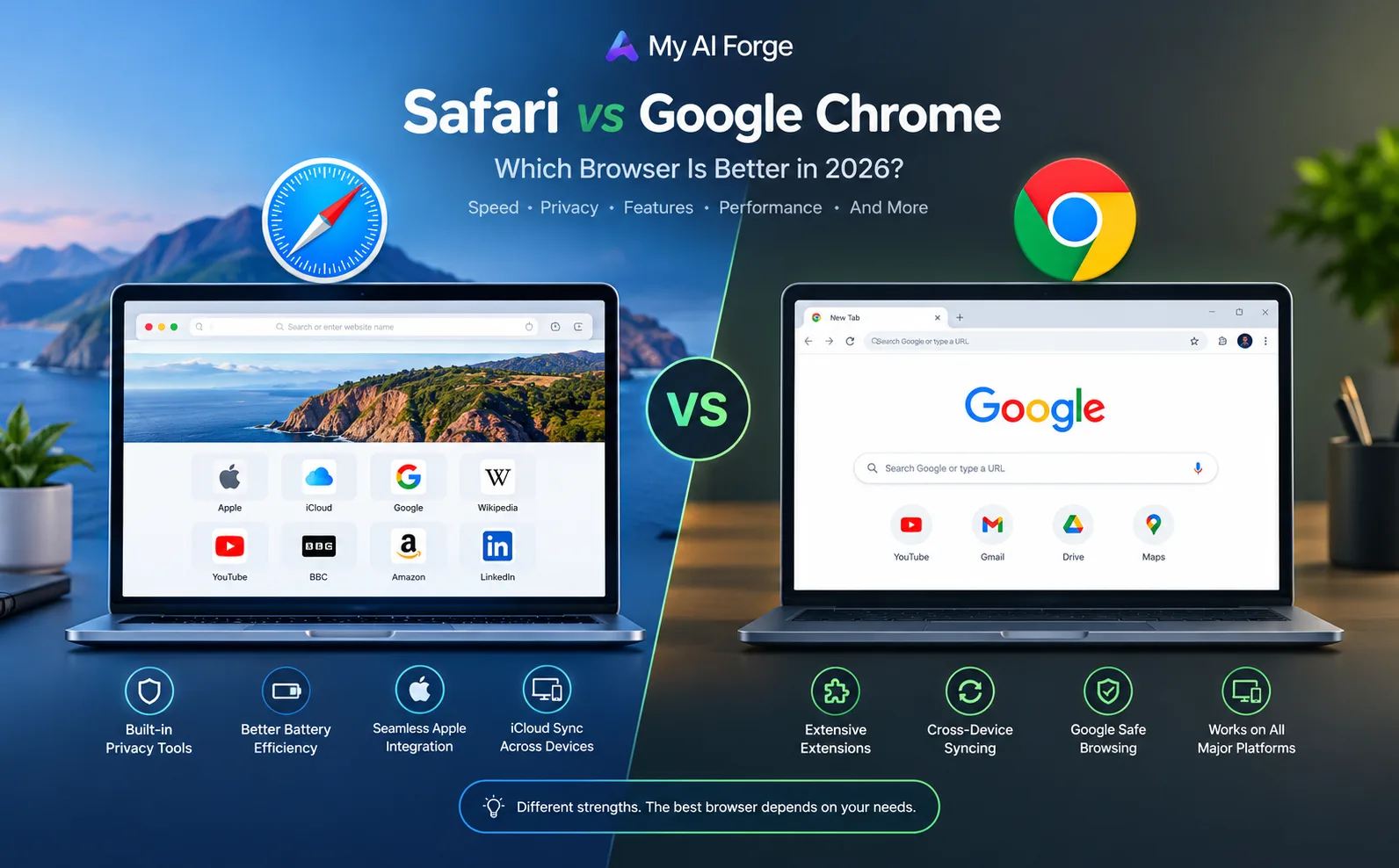
Safari vs Google Chrome : Which Browser Is Better?
Choosing a web browser might seem like a small decision, but it can affect your everyday online experience. Your browser determines how you access websites, manage passwords, install extensions, protect your privacy, and move between devices.
Two popular options are Apple's Safari and Google's Chrome. Safari is closely integrated with Apple's ecosystem, while Chrome is known for its Google account integration, extensive extension library, and availability across multiple desktop platforms.
But which browser should you use in 2026? Is Safari faster? Does Chrome offer better features? Which browser is more private, and which one is best for work?
In this guide, we'll compare Safari vs Google Chrome across performance, privacy, battery life, extensions, security, and everyday usability to help you make an informed decision.
Safari vs Chrome: Quick Comparison
Feature | Apple Safari | Google Chrome |
|---|---|---|
Developer | Apple | |
Best suited for | Apple-device users | Cross-platform users |
Desktop availability | macOS | Windows, macOS, Linux, and other supported platforms |
Mobile availability | Apple devices | Android and iOS |
Browser cost | Free | Free |
Account integration | Apple Account and iCloud | Google Account |
Extensions | Safari extensions through Apple's ecosystem | Chrome Web Store extensions |
Privacy approach | Built-in tracking protections | Configurable privacy and security controls |
Battery efficiency | Optimized for Apple hardware | Performance varies by device and workload |
Best reason to choose it | Apple integration and privacy features | Cross-device flexibility and extensions |
Quick verdict: Choose Safari if you primarily use Apple devices and value built-in tracking protections and iCloud integration. Choose Chrome if you regularly switch between different operating systems, rely on Google services, or need a particular Chrome extension.
Neither browser is automatically the best choice for every person.
1. What Is Safari?
Safari is Apple's web browser, available on devices such as the iPhone, iPad, and Mac.
Its main advantage is its integration with Apple's ecosystem. You can synchronize supported browsing information through iCloud, access tabs across compatible devices, and use features such as Tab Groups, Reading List, and Safari Profiles.
Safari also includes built-in privacy features. Intelligent Tracking Prevention is designed to limit cross-site tracking, while Privacy Report helps you see known trackers that have been prevented from profiling your browsing activity.
Other useful features include:
Reader mode for a less cluttered reading experience
Built-in translation for supported languages
Password and passkey integration
Tab Groups for organizing related websites
Extensions for adding functionality
Continuity features for moving between Apple devices
Safari is particularly attractive if your everyday workflow already revolves around an iPhone and a Mac.
Learn more on Apple's official Safari website.
2. What Is Google Chrome?
Google Chrome is Google's web browser. It is available across multiple desktop operating systems and mobile platforms, making it useful for people who work with different devices.
One of Chrome's biggest strengths is its integration with Google services. When you sign in and enable the relevant synchronization settings, you can access supported bookmarks, passwords, browsing history, and other browser data across compatible devices.
Chrome also has a large extension ecosystem through the Chrome Web Store. Extensions can add productivity tools, password managers, developer utilities, writing assistance, and many other capabilities.
Important Chrome features include:
Google Account synchronization
A large collection of browser extensions
Password management and autofill
Google Safe Browsing protections
Website permission controls
Developer tools for inspecting and debugging websites
Profiles for separating different browsing activities
For people who work across Windows and macOS or use a mixture of desktop and mobile devices, Chrome can provide a familiar browsing experience.
Explore the browser at the official Google Chrome website.
3. Speed and Performance: Which Browser Is Faster?
Speed is one of the most common reasons people compare Safari and Chrome. However, browser performance is not determined by a single benchmark.
A browser may load one website faster but perform differently when running a complex web application, streaming video, or managing dozens of open tabs.
Performance depends on factors such as:
Your device and processor
Available memory
Operating system and browser version
Internet connection
Website design and server response
Extensions and background activity
Number of open tabs
Apple emphasizes Safari's performance on Apple devices and publishes speed comparisons on its website. These are Apple's own test results and marketing claims, so they should not be treated as universal results for every device or browsing situation.
For a fair comparison, test both browsers on the same computer, using the same websites and network connection. Repeat the tests and use your normal workload rather than relying on one isolated speed test.
Winner: There is no universal winner. Safari is a strong option on Apple hardware, while Chrome is a flexible choice across supported operating systems. Your own workload matters more than a headline benchmark.
4. Privacy: Is Safari More Private Than Chrome?
Privacy is an important difference between these browsers, but it helps to understand what browser privacy actually means.
Websites can use cookies, tracking scripts, and other techniques to understand visitor behavior. Browsers offer different controls to limit this activity.
Safari's privacy features
Safari includes Intelligent Tracking Prevention, which uses on-device intelligence to help limit cross-site tracking. Its Privacy Report also provides information about known trackers that have been prevented from profiling your activity.
Safari offers settings for cross-site tracking and, on supported configurations, IP-address protection for known trackers.
These features are useful if you want tracking protections built directly into your browser without having to install additional extensions.
Chrome's privacy features
Chrome offers privacy controls that let you manage browsing data, website permissions, cookies, and other settings. It also provides security features such as Google Safe Browsing.
The exact privacy experience depends on your settings, account configuration, and browser version. Review the available controls rather than assuming the default settings meet every privacy preference.
Which browser should privacy-conscious users choose?
Safari has strong built-in anti-tracking features, especially within Apple's ecosystem. Chrome offers configurable privacy controls, but users should review their settings and understand what data is associated with their Google Account.
Neither browser makes you completely anonymous. Websites, internet providers, logged-in accounts, and other services may still collect information under certain circumstances.
For better privacy in either browser:
Review cookie and tracking settings.
Limit unnecessary website permissions.
Install only trusted extensions.
Avoid signing in to accounts when anonymity is important.
Use unique passwords and enable strong account security.
Keep your browser updated.
Winner: Safari is a compelling default for users who prioritize built-in tracking protections. Chrome can also be configured with useful privacy controls, but the best setup depends on your needs and behavior.
5. Battery Life and Resource Usage
Battery life matters when you're browsing on a laptop away from a charger. Memory usage matters too, particularly when you have many tabs open or run demanding web applications.
Safari is designed specifically for Apple's hardware and operating systems. Apple promotes its power efficiency as one of the browser's advantages, particularly for video streaming and everyday browsing on Mac.
Chrome runs on a wide range of hardware, so its battery consumption and memory usage can vary substantially. Its performance also depends on the websites, extensions, and background tasks you run.
It would be misleading to say that one browser always uses less memory or battery in every situation.
If you're comparing them on a MacBook, try this practical test:
Charge the laptop to a consistent starting level.
Update both browsers.
Open the same websites in each browser.
Use similar brightness, network conditions, and workloads.
Compare battery consumption over a meaningful period.
Repeat the test to reduce the effect of background activity.
Avoid comparing a clean browser with another browser running numerous extensions, because that would produce an unfair result.
Winner: Safari is worth trying first if battery efficiency on a Mac is a priority. Test Chrome as well if its extensions or cross-platform features are important to you.
6. Extensions and Customization
Extensions can change how a browser works. They can help block unwanted content, manage passwords, capture notes, inspect websites, automate tasks, or improve productivity.
Chrome has a large extension catalog through the Chrome Web Store. This makes it especially useful for people who depend on specialized browser tools.
Safari supports extensions through Apple's extension ecosystem, including the Safari category in the App Store. Its available selection and installation process differ from Chrome's.
A Chrome extension does not automatically work in Safari. Some extensions may have related Safari versions, but you need to check the specific product.
Before installing any extension, examine its permissions and developer reputation. An extension that can read or change information on every website you visit may have access to sensitive browsing data.
Winner: Chrome is generally the more flexible choice if you depend on a wide range of Chrome Web Store extensions. Safari may be sufficient if the extensions you need are available in Apple's ecosystem.
7. Cross-Device Syncing and Productivity
Your browser becomes more convenient when bookmarks, passwords, and open tabs are available wherever you work.
Safari and iCloud
Safari can synchronize supported browsing information across compatible Apple devices using iCloud. This includes items such as bookmarks, tabs, and other browsing data, depending on your settings.
If you start reading an article on your iPhone and continue on your Mac, Apple's ecosystem can make the transition easier.
Chrome and Google Account
Chrome lets you synchronize selected browsing data through your Google Account. Depending on your settings, this can include bookmarks, passwords, history, and open tabs across supported devices.
This is useful if you use Chrome on different desktop operating systems or regularly switch between a work computer and personal devices.
Which sync system is better?
If most of your devices are Apple products, Safari's integration may feel more natural. If you move between Windows, macOS, Android, and other supported environments, Chrome may be the more convenient choice.
In both cases, review which data categories are being synchronized and secure the associated account.
Winner: Safari for an Apple-first setup; Chrome for a mixed-device workflow.
8. Security: Which Browser Is Safer?
Privacy and security are related, but they are not the same thing.
Privacy controls help limit how information about your browsing is collected. Security features help protect you from threats such as malicious websites, phishing attempts, and software vulnerabilities.
Safari includes protections such as warnings about suspicious websites, passkey support, and operating-system integration.
Chrome offers Google Safe Browsing and other security features intended to help identify dangerous websites and downloads. It also receives updates to address vulnerabilities.
Neither browser can protect you from every online threat. A user can still fall for a phishing message, install a malicious extension, download a dangerous file, or disclose sensitive information voluntarily.
For better security:
Install browser and operating-system updates promptly.
Download extensions from official stores.
Review permissions before granting access.
Use a password manager and unique passwords.
Enable multifactor authentication where available.
Verify website addresses before entering payment details.
Avoid downloading software from untrusted websites.
Winner: Both provide important security protections. Keeping your browser updated and using it carefully are essential regardless of which one you choose.
9. Compatibility With Websites and Online Tools
Some users need a browser that works reliably with their everyday websites, business tools, school portals, video platforms, and web applications.
Chrome is a practical choice for many cross-platform workflows, particularly when a service or extension specifically supports Chrome.
Safari supports modern web standards and works well with many popular websites. However, certain websites or specialized applications may behave differently across browsers.
If you rely on a specific tool for work, don't choose a browser based only on general recommendations. Check the tool's supported browsers and test its critical features.
This is especially important for:
Business dashboards
Website development tools
Online meeting platforms
School and university portals
Browser-based editing software
Extensions required for work
Winner: Chrome is a sensible first choice when your workflow requires a specific Chrome extension or explicitly supported browser. Otherwise, test your essential websites in both browsers.
10. Safari vs Chrome for Different Types of Users
For MacBook users
Safari is a strong starting point because it integrates with macOS and is designed to work efficiently with Apple hardware.
Chrome may still be preferable if your work requires Chrome-specific extensions, Google Account workflows, or particular web applications.
For iPhone users
Safari is integrated into the Apple ecosystem and supports features such as iCloud syncing, Reader, and tracking protections.
Chrome is worth considering if you already use Chrome across your other devices and want your browser data in one familiar place.
For Windows users
Chrome is the straightforward option between these two browsers because Safari is not available as a current, supported Windows browser.
For students
Both browsers can handle research, online classes, document tools, and everyday browsing. Safari is convenient for students using Apple devices, while Chrome is useful for mixed-device setups and workflows that depend on Chrome extensions.
For developers
Chrome's developer tools and extension ecosystem make it a common choice for web development and debugging.
Safari is also valuable for testing websites in Apple's browser environment. Developers building for iPhone, iPad, or Mac should test their websites in Safari as well.
For privacy-conscious users
Safari's built-in tracking protections make it worth considering. Chrome users can also improve their privacy by reviewing settings, limiting extension access, and managing account synchronization.
11. Safari vs Chrome: Final Pros and Cons
Safari
Pros
Deep integration with Apple devices
Built-in Intelligent Tracking Prevention
Useful iCloud synchronization features
Reader mode and Tab Groups
Designed for efficiency on Apple hardware
Cons
Limited to Apple's supported ecosystem
Smaller extension selection than Chrome's broader catalog
Some websites and tools may work differently
Not a current supported browser option for Windows users
Google Chrome
Pros
Available across multiple desktop platforms
Extensive Chrome Web Store ecosystem
Convenient Google Account synchronization
Useful built-in developer tools
Flexible profiles and website permission controls
Cons
Battery and memory use depend on the workload
Privacy settings require attention
Some extensions request broad access to browsing data
Features and synchronization depend on settings and account configuration
Frequently Asked Questions
Is Safari better than Google Chrome?
Safari may be better if you mainly use Apple devices and value built-in tracking protection and iCloud integration. Chrome may be better if you need cross-platform syncing, Google services, or a particular Chrome extension.
Is Safari faster than Chrome?
Performance varies by device, browser version, website, and workload. Apple publishes favorable Safari performance claims for its own hardware, but results may differ in your everyday use. Test both browsers on your own device if speed is a major concern.
Which browser is better for battery life?
Safari is designed to be power-efficient on Apple hardware. Actual battery life depends on the workload, device, background tasks, and websites you use.
Is Safari more private than Chrome?
Safari has built-in anti-tracking features such as Intelligent Tracking Prevention. Chrome offers privacy settings and security controls too. Your account settings, browsing habits, and installed extensions also affect your privacy.
Can I use Chrome extensions in Safari?
Not automatically. Safari has its own extension ecosystem. Check whether the developer offers a Safari-compatible version of the extension you need.
Should I use Safari and Chrome together?
Yes. Some people use Safari for everyday browsing on Apple devices and Chrome for work, testing websites, or using specific extensions. Using two browsers can be convenient if you keep their accounts, passwords, and profiles organized.
Final Verdict: Which Browser Should You Choose in 2026?
The Safari vs Google Chrome debate doesn't have one answer that works for everyone.
Choose Safari if you primarily use an iPhone, iPad, or Mac and want Apple's built-in privacy features, iCloud integration, and a browser designed for its hardware.
Choose Chrome if you move between different operating systems, rely on Google Account synchronization, or need a particular Chrome Web Store extension.
If you're still unsure, try both with your regular websites for a few days. Pay attention to performance, battery consumption, extension availability, and how naturally each browser fits into your workflow.
The best browser is the one that supports your everyday tasks, provides the features you need, and gives you a level of privacy and convenience you're comfortable with.
Want more software comparisons and practical technology guides? Explore more reviews on My AI Forge to find tools that fit your workflow.
Editorial note: Browser features, privacy controls, and performance can change with updates. Apple's performance claims are published by Apple and should not be interpreted as independent benchmark results. Check the official product documentation for the latest details.