

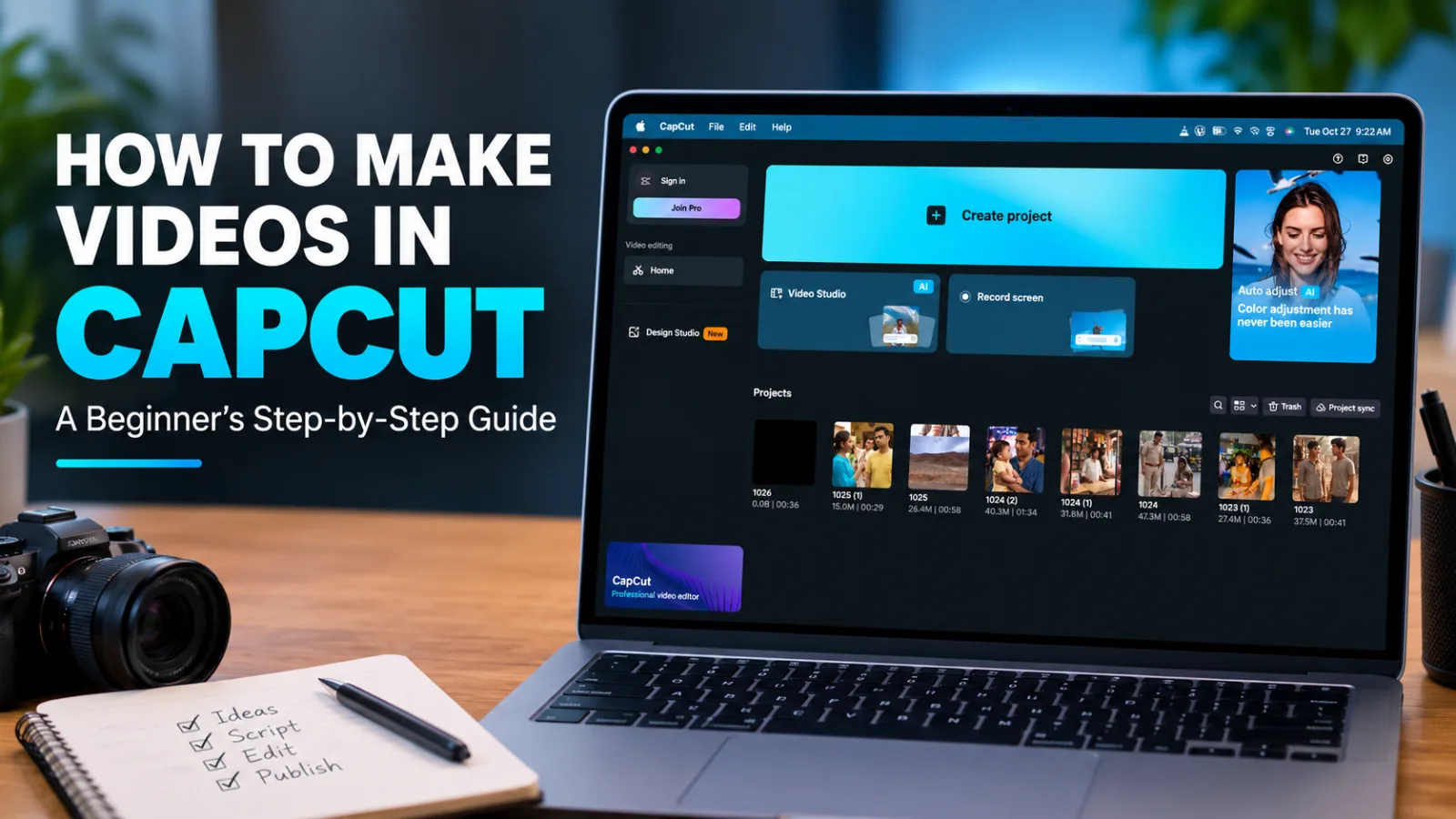
How to Make Videos in CapCut: A Step-by-Step Guide for Beginners
You don't need expensive editing software to create engaging videos. With CapCut, beginners can combine video clips, add text, include music, create captions, and prepare videos for social media using a relatively straightforward editing workflow.
Whether you want to create YouTube videos, Instagram Reels, TikTok videos, or YouTube Shorts, learning the basic editing process can help you produce more polished content.
In this tutorial, you'll learn how to make a video in CapCut from start to finish. The steps focus on the general editing workflow; exact buttons and available features may vary between the mobile app, desktop version, web editor, and region.
What Is CapCut?
CapCut is a video-editing application available in different versions for supported devices and platforms. It provides editing tools that can help creators trim footage, combine clips, add text, adjust audio, and apply visual effects.
Depending on the version and subscription, additional features may include automatic captions, background removal, templates, and AI-assisted editing.
Before starting, install CapCut from its official website or your device's official app store. Check the current feature availability and pricing, because some tools and export options may require a paid plan.
Step 1: Start a New Project
Open CapCut and choose the option to create a new project. Select the video clips and images you want to use.
For your first project, choose a few short clips rather than trying to edit a long video. This makes it easier to learn the interface and understand how clips fit together.
Before importing your footage, decide where you plan to publish the video:
YouTube videos: Usually landscape, with a 16:9 aspect ratio.
YouTube Shorts: Usually vertical, with a 9:16 aspect ratio.
Instagram Reels and TikTok: Generally vertical, with a 9:16 aspect ratio.
Choose footage that matches your intended format whenever possible.
Step 2: Arrange and Trim Your Clips
The timeline is where you organize your video. Each clip appears in sequence, allowing you to control what viewers see and when they see it.
To begin editing:
Place your clips in the order you want them to appear.
Move through the timeline to find unwanted sections.
Split a clip where you want to remove a section.
Delete unnecessary footage.
Drag the remaining clips together to close unwanted gaps.
Watch the edited sequence from beginning to end. Remove long pauses, repeated information, and sections that don't help communicate your message.
For tutorial videos, keep each section focused on one step. For short-form videos, get to the main point quickly without cutting away important context.
Step 3: Add Text and Titles
Text can introduce your topic, explain a step, or highlight an important point.
Look for the text tools in your version of CapCut. Add a title at the beginning, then use shorter text labels where they help explain the footage.
For example, a tutorial about editing a video might use these on-screen labels:
Import Your Clips
Trim Unwanted Footage
Add Captions
Adjust the Audio
Export Your Video
Use readable fonts, clear contrast, and consistent styling. Avoid placing essential text too close to the screen edges, where platform interface elements may cover it.
Keep titles brief enough to read comfortably. If viewers need to understand a complicated instruction, show the relevant screen or action instead of relying on text alone.
Step 4: Add Captions or Subtitles
Captions help viewers follow dialogue, including people watching without sound. They can be especially useful for educational videos and short-form content.
If your version of CapCut includes automatic captions, select the appropriate caption tool, choose the spoken language, and generate a draft.
Next, review the captions carefully:
Correct incorrectly recognized words and names.
Check punctuation and sentence breaks.
Ensure captions appear at the right time.
Make sure the text is readable on a mobile screen.
Remove accidental or duplicated text.
Automatic speech recognition can make mistakes, especially with background noise, accents, and unfamiliar names. Always proofread the result before exporting.
Step 5: Add Music and Improve the Audio
Audio quality can make a noticeable difference to the finished video.
If you're using background music, keep it quiet enough that viewers can clearly hear the narration. You can also adjust clip volume, remove unwanted background noise using available tools, and add fades where appropriate.
A simple audio workflow is:
Listen to the original recording.
Reduce distracting background sounds where possible.
Add suitable background music if it improves the video.
Balance the narration and music levels.
Listen again using headphones or speakers.
Use music and sound effects that you have permission to use. Music available inside an editing app is not necessarily licensed for every platform, region, or commercial purpose. Check the applicable usage terms before publishing monetized content.
Step 6: Use Transitions and Effects Carefully
Transitions control how one clip changes into the next. CapCut may offer options such as fades, dissolves, and other visual transitions.
For a clean beginner edit, start with simple cuts. Add a transition only when it improves the flow between two scenes.
Effects can also help emphasize a moment, but too many animations, filters, and zooms can distract viewers from your message.
A useful rule is to prioritize clear footage, understandable narration, and smooth pacing before adding decorative effects.
Step 7: Adjust the Video Format
Before exporting, confirm that the project fits the platform where you plan to publish it.
For example:
Select a 16:9 landscape layout for a conventional YouTube video.
Select a 9:16 vertical layout for a typical YouTube Short or Reel.
Check that the main subject remains visible after changing the aspect ratio.
Reposition text and other important elements if the crop changes.
If your original footage is landscape but your final video is vertical, inspect the crop carefully. Important people, objects, or text should not be cut off.
Step 8: Export Your Finished Video
When editing is complete, open the export options. Available resolution, frame-rate, and quality settings depend on your device, footage, and version of CapCut.
For many standard projects, 1080p is a practical starting point. Match the frame rate to your source footage and intended output where possible, rather than increasing it unnecessarily.
Before exporting, check:
The beginning and ending of the video.
Captions and spelling.
Narration and music volume.
Aspect ratio and framing.
Any blank frames or unwanted gaps.
Music, footage, and other usage permissions.
Export the video and watch the final file before uploading it. A complete review can catch mistakes that are easy to miss while editing.
Step 9: Prepare the Video for YouTube
After exporting, prepare the remaining elements of your YouTube upload.
Title: Describe the actual content clearly and give viewers a reason to watch.
Thumbnail: Use a readable design that represents the video accurately.
Description: Explain what viewers will learn and include relevant resource links.
Captions: Check the final subtitles, whether embedded in the video or provided separately.
Audience and disclosures: Select the appropriate upload settings and make any disclosures required for your content.
Remember that editing quality alone doesn't guarantee views or monetization. Useful information, original contributions, audience relevance, and accurate presentation are also important.
Common CapCut Editing Mistakes to Avoid
Adding too many effects
Frequent transitions and visual effects can make a video difficult to follow. Use them only when they serve a purpose.
Ignoring audio quality
Music that overwhelms the narration can make even good footage frustrating to watch. Listen to the final mix before exporting.
Trusting automatic captions without checking them
Incorrect subtitles can change the meaning of a sentence. Review names, numbers, and technical terms manually.
Exporting in the wrong aspect ratio
A landscape video may crop badly when converted to vertical format. Check the framing before exporting.
Using unlicensed content
Finding a song, image, or clip online doesn't automatically give you permission to reuse it. Check the applicable license and platform rules.
Skipping the final review
Watch the exported video from beginning to end. Check for mistakes, missing sections, audio problems, and unexpected visual changes.
Frequently Asked Questions
Is CapCut good for beginners?
CapCut can be a useful starting point because it offers common editing tools in accessible interfaces. The best choice depends on your device, project requirements, and which features are available to you.
Can I use CapCut to make YouTube Shorts?
Yes. You can edit vertical footage, arrange clips, add text and captions, adjust audio, and export a suitable vertical video. Check the current YouTube Shorts requirements before uploading.
Can I edit YouTube videos in CapCut on a computer?
CapCut offers desktop editing on supported systems, although availability and features can change. Check its official website for the latest system requirements and version details.
Is CapCut completely free?
CapCut offers free features, but some tools, assets, or options may require a paid subscription. Check the current pricing and feature list for your platform and region.
Can CapCut automatically generate subtitles?
Some versions include automatic caption generation. Availability can depend on your version, language, region, and account. Review all generated captions before publishing.
Can I monetize videos edited in CapCut?
Editing a video in CapCut does not automatically make it eligible for monetization. You must also comply with the relevant platform's policies and have the necessary rights to your footage, music, and other content.
Final Thoughts
Learning CapCut is easier when you follow a consistent editing process. Start by arranging and trimming your clips, then add useful text, check the audio, review the framing, and export the finished video.
You don't need to use every effect or advanced feature in your first project. Focus on making the video clear, useful, and enjoyable to watch.
Once you're comfortable with the basics, experiment with more advanced editing techniques and develop a style that suits your audience.
Note: CapCut's interface, features, availability, and subscription terms may change. Check the current official documentation for instructions specific to your version.