

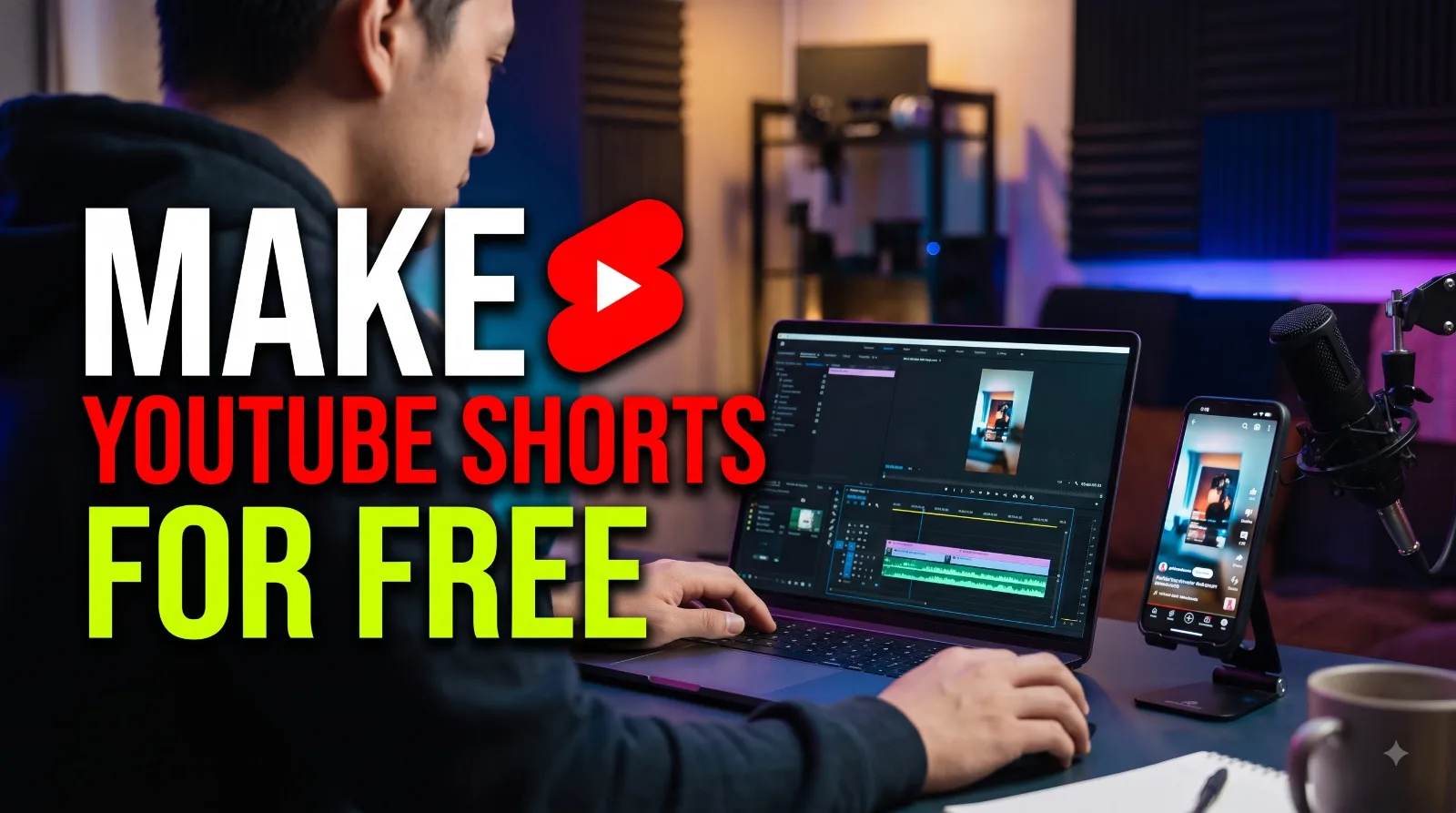
How to Make YouTube Shorts for Free: A Step-by-Step Beginner's Guide
You don't need an expensive camera or paid editing software to start creating YouTube Shorts. With a smartphone, a simple idea, and a free video editor, you can make vertical videos for tutorials, product demonstrations, educational content, and entertainment.
In this guide, you'll learn how to create a YouTube Short from start to finish, including choosing a topic, recording footage, editing clips, adding captions, and uploading your video.
What Are YouTube Shorts?
YouTube Shorts are short-form videos designed for viewers who enjoy watching content on their phones. They work well for quick tutorials, interesting facts, product demonstrations, storytelling, and other ideas that can be explained in a short video.
You can create Shorts using your phone or computer. For beginners, a smartphone is often the simplest starting point.
Step 1: Choose One Clear Idea
Before recording, decide what your video will teach or show.
Good beginner-friendly ideas include:
A quick tutorial explaining one useful feature.
Three tips for solving a common problem.
A before-and-after demonstration.
A short explanation of an AI tool.
A simple answer to a frequently asked question.
Keep your video focused on one main idea. Trying to explain too many things in a single Short can make the message confusing.
Example: Instead of making a video about every feature in a video editor, create a Short showing viewers how to add automatic captions.
Step 2: Write a Short Script
A simple script helps you stay focused and avoid unnecessary pauses.
Try this three-part structure:
Hook: Start with a reason to keep watching.
Main content: Explain the steps or demonstrate the result.
Ending: Summarize the benefit or invite viewers to try the technique.
For example:
“Want to add captions to your videos without typing every word? Open your editor, import your clip, and use its automatic caption feature. Review the text, correct any mistakes, and export your video.”
Use natural language and explain unfamiliar terms. You don't need to sound like a professional presenter.
Step 3: Record Vertical Video
For a standard full-screen Short, record in a vertical 9:16 format. A resolution of 1080 × 1920 pixels is a useful target.
Follow these basic recording tips:
Clean your phone's camera lens.
Face a window or use soft lighting.
Keep the camera steady.
Record in a quiet environment.
Speak clearly and avoid covering the microphone.
Leave some space around important subjects and on-screen text.
You can record yourself speaking, capture your screen, demonstrate a product, or combine different types of footage.
Only use footage, music, and images you own or have permission to use.
Step 4: Edit Your Video With a Free Tool
A beginner can start with a free video editor such as CapCut, if available in their region, or another editor with a free editing tier.
The basic editing process is similar across many apps:
Create a new project.
Import your recorded clips.
Arrange the clips in the correct order.
Trim unnecessary pauses and mistakes.
Add text or captions where useful.
Adjust the audio level.
Watch the complete video before exporting.
Avoid adding too many transitions, effects, or animations. Clear footage and understandable audio are usually more useful than excessive visual effects.
Free-plan features can change, so check the editor's current pricing and export restrictions before starting a project.
Step 5: Add Captions and On-Screen Text
Captions help viewers follow spoken content, including when they watch with the sound turned down.
If your editor supports automatic captions:
Generate captions from your recorded speech.
Review the transcript carefully.
Correct names, technical terms, and punctuation.
Choose a readable font and text size.
Keep captions away from important visual details.
Automatic captions are not always accurate. Never assume that the generated transcript is correct without reviewing it.
Keep text short enough to read comfortably on a phone screen.
Step 6: Use Music and Sound Effects Carefully
Background music can support the mood of your video, but it should not overpower your voice.
Use music from YouTube's permitted music sources or another source whose licence covers your intended use. Check the specific licence conditions, including any attribution requirements.
If you're creating a tutorial, clear narration is often more important than background music.
Do not assume that a song is safe to use just because it is available online or included in another creator's video.
Step 7: Export Your Short
Before exporting, check these settings where your editor supports them:
Setting | Suggested starting point |
|---|---|
Aspect ratio | 9:16 vertical |
Resolution | 1080 × 1920 |
Frame rate | Match your original footage, commonly 30 fps |
Format | MP4 |
Video codec | H.264, if available |
These are practical starting settings, not mandatory settings for every video. Avoid exporting at a higher resolution than your source footage without a reason.
Watch the exported file from beginning to end. Check the captions, audio, framing, and final seconds before uploading.
Step 8: Upload to YouTube
Open YouTube Studio or the YouTube app and follow the current upload process.
Before publishing:
Write a clear, accurate title.
Add a description that explains what viewers will learn.
Choose a suitable thumbnail if the upload workflow offers that option.
Set the correct audience designation.
Check any copyright or processing notices.
Review the video before making it public.
Use keywords naturally. Adding the word “Shorts” to a title is not a guarantee of additional reach.
YouTube's supported Shorts length and upload requirements can change, so check its current official Shorts guidance if your video is longer than a minute or you need a specific format.
Step 9: Review Performance and Improve
After publishing, use YouTube Studio Analytics to understand how viewers respond.
Look at available metrics such as:
Viewed versus swiped away: Helps you understand whether viewers choose to watch.
Audience retention: Shows where viewers continue watching or leave.
Engaged views: Helps you assess meaningful viewing activity under YouTube's current measurement system.
Subscribers gained: Indicates whether the video attracts people who want more of your content.
Compare videos with similar topics and formats. One video's performance does not establish a universal rule about what works.
If viewers leave early, experiment with a clearer opening, faster explanations, or a more direct demonstration. Change one or two things at a time so you can learn what helps.
Common Mistakes to Avoid
1. Starting too slowly: Explain the topic or show the result early.
2. Using unreadable captions: Check text on a phone-sized screen.
3. Adding unnecessary effects: Keep the editing focused on the message.
4. Ignoring audio quality: Reduce background noise and check narration volume.
5. Reusing other creators' footage without permission: Use your own recordings or properly licensed material.
6. Expecting immediate growth: Publishing consistently can help you learn, but views and subscribers are never guaranteed.
7. Copying the same template for every topic: Adapt your examples, visuals, and explanations to the audience and subject.
Frequently Asked Questions
Can I make YouTube Shorts for free?
Yes. You can begin with a smartphone, free editing features, and footage you record yourself. Some editors offer paid features, so check their current plans before relying on them.
Do I need a professional camera?
No. A modern smartphone is enough to get started. Good lighting, clear sound, steady footage, and a useful idea can make a significant difference.
Which free editor should beginners use?
Choose an editor that supports trimming, text, captions, audio adjustments, and vertical exports. CapCut is one option where available; other editors may suit your device or region better.
How often should I upload Shorts?
Choose a schedule you can maintain without sacrificing quality. You can start with a manageable number of videos per week, then adjust based on your workflow and audience response.
Can I monetize Shorts made with AI tools?
AI tools can assist with scripting, editing, captions, and visuals. Monetization depends on YouTube's current eligibility rules and the originality, value, rights, and policy compliance of your content. Using AI does not automatically make a video eligible or ineligible.
Final Thoughts
Making YouTube Shorts does not have to be complicated or expensive. Start with one clear idea, record vertically, edit out distractions, check your captions, and publish a video that gives viewers a useful result.
After publishing, study the available analytics and use what you learn to improve your next video. Focus on creating original, helpful content rather than chasing a particular view count.
Next step: Pick one small problem your audience faces and make a Short that solves it clearly.